Project 64

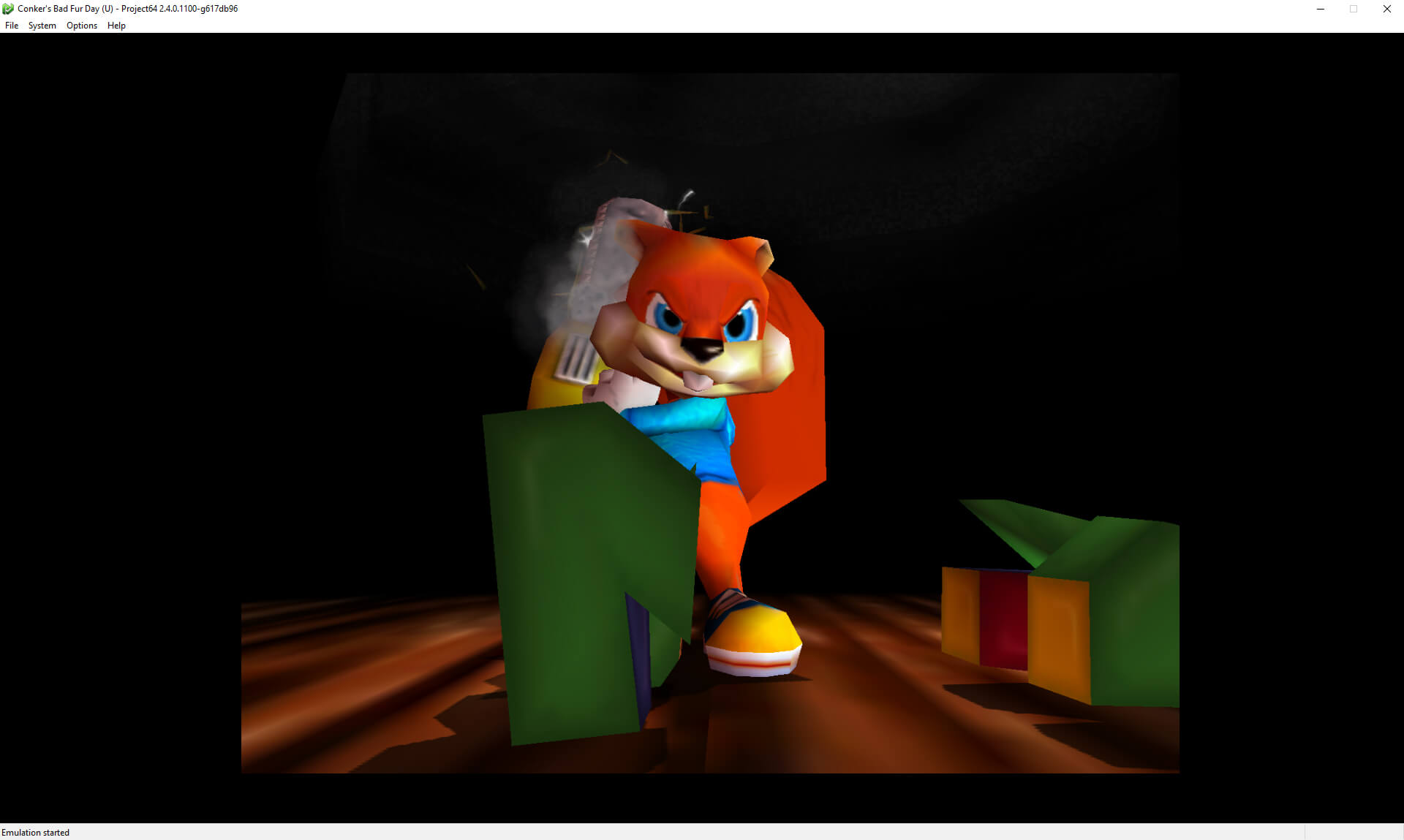
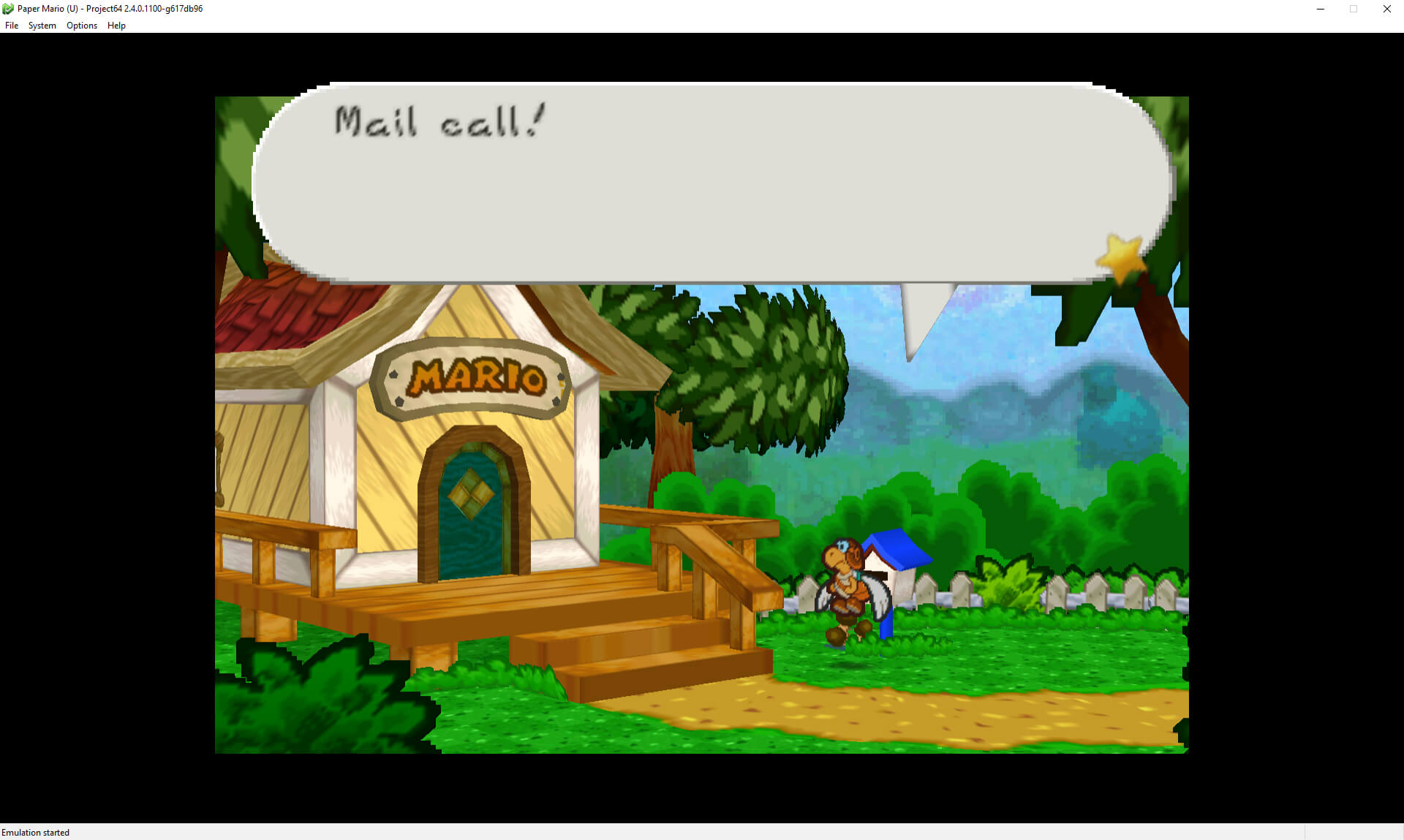
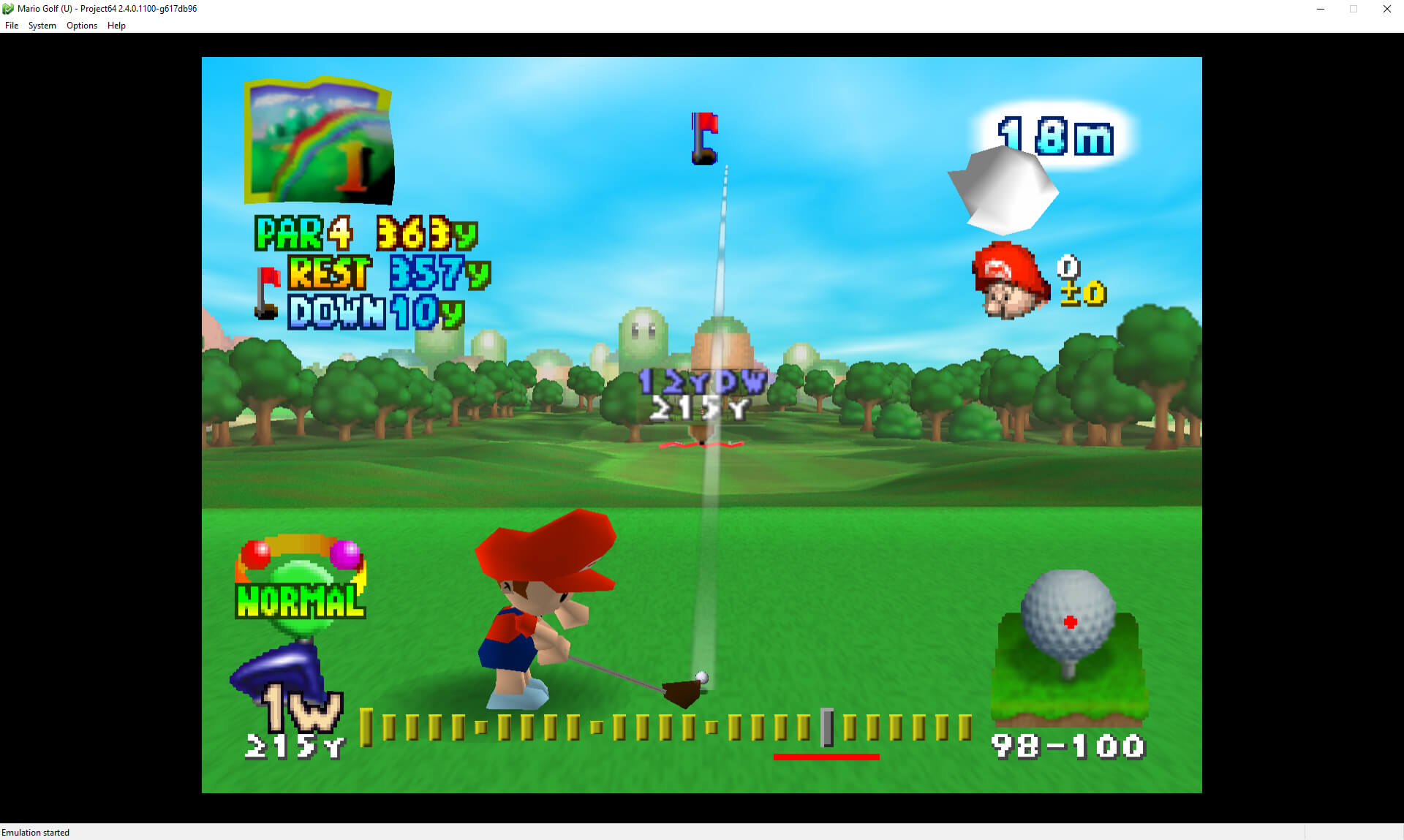
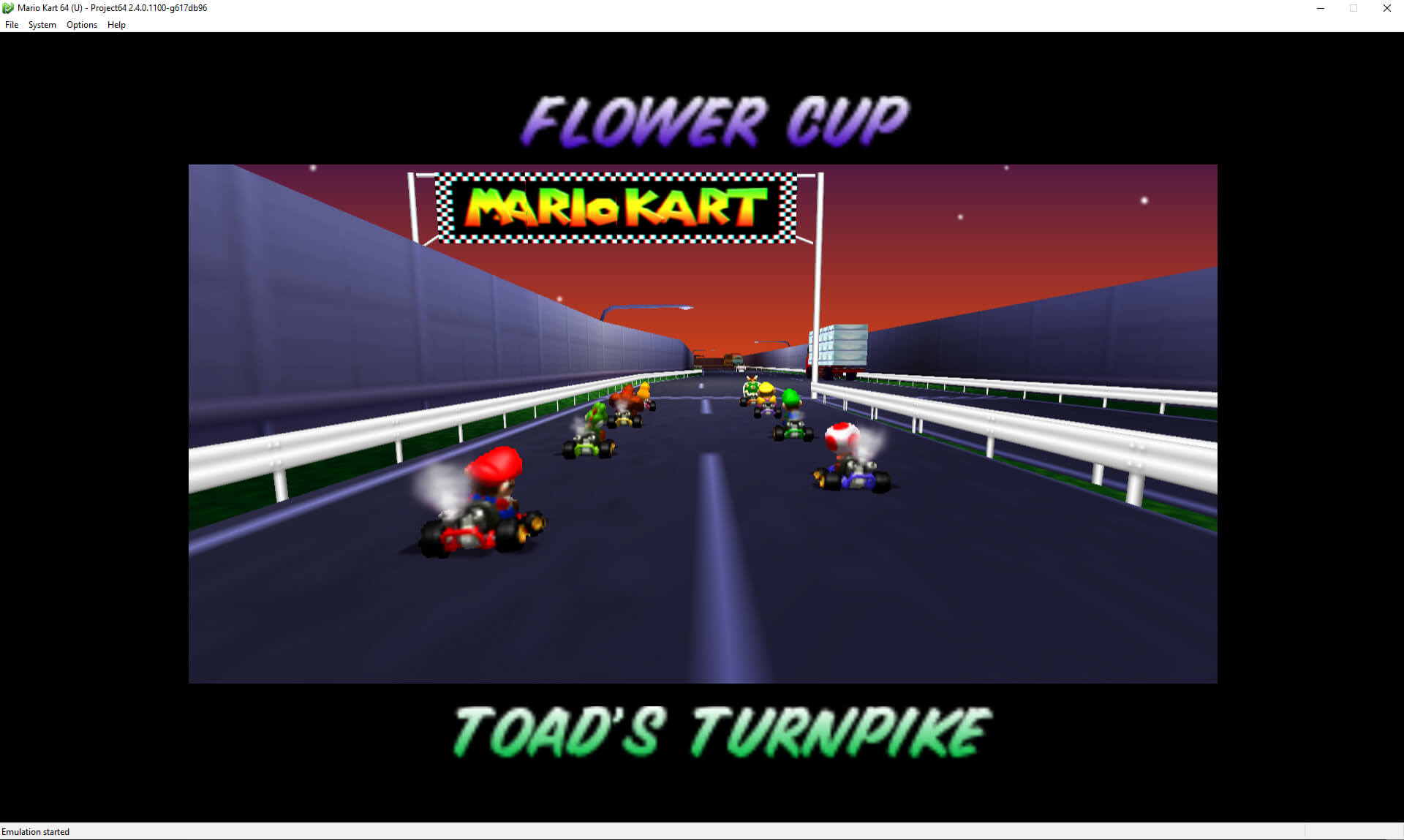
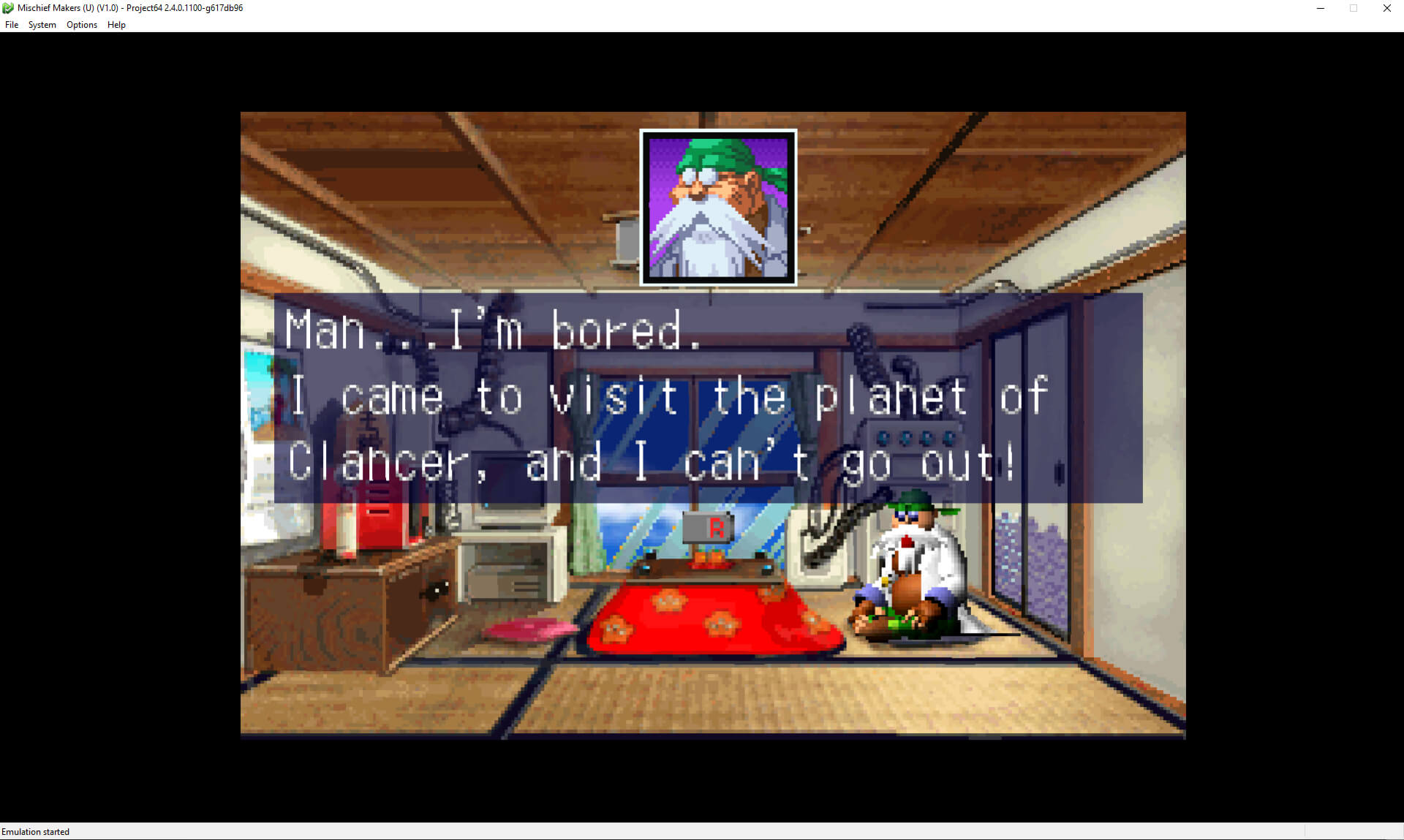
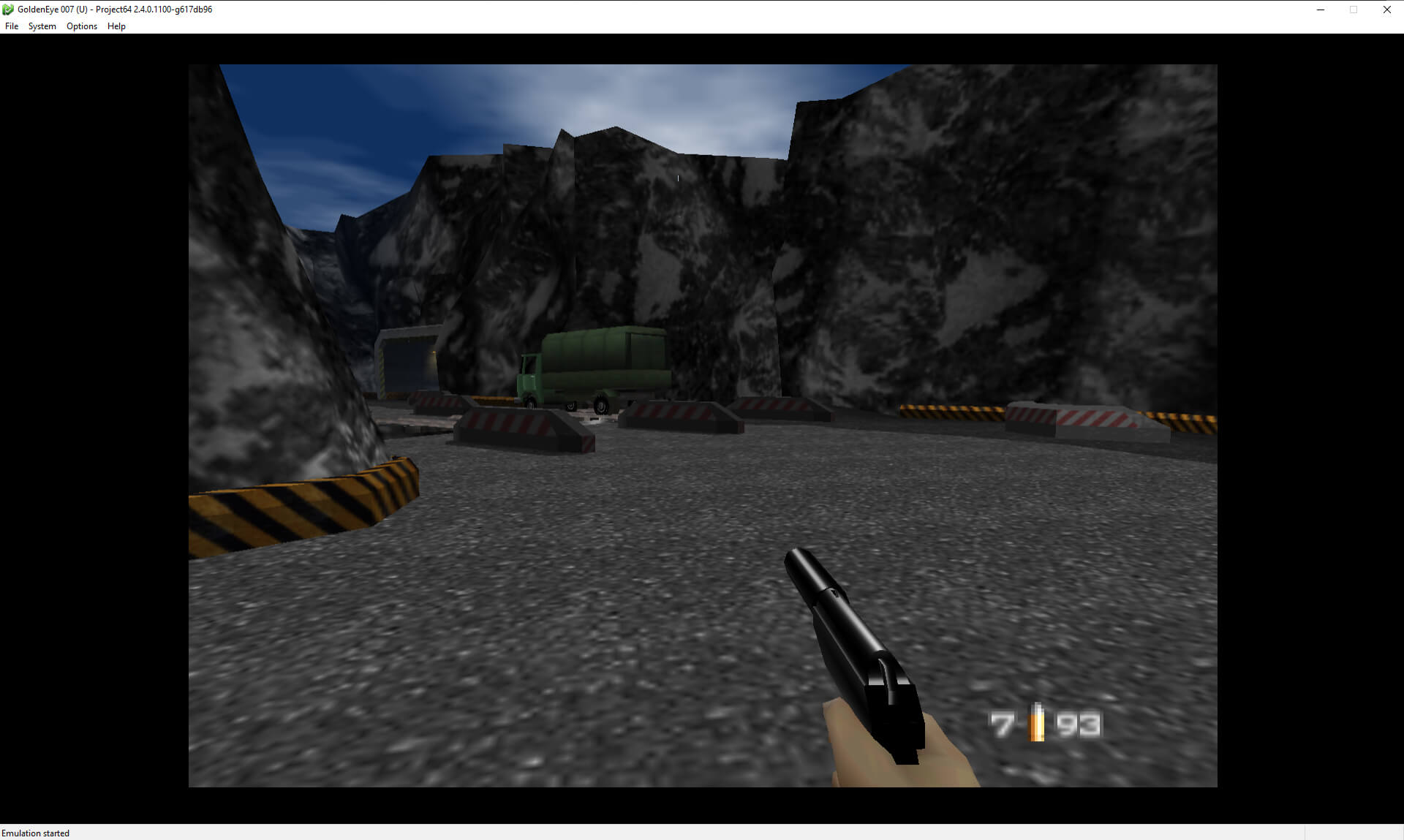
Project64 (PJ64) is a Nintendo 64 emulator for Windows developed primarily by Zilmar. Its first public release, version 1.0, came out on 26 May 2001, and it has been developed on and off ever since.
Project64 is known for its high compatibility and good performance, and it is the most widely used N64 emulator.
After a long gap following version 1.6, development picked up again: the planned 1.7 release became version 2.0, and the source code was released as open source in 2015.
While Zilmar developed the emulator and its RSP plugin, the video, audio and input plugins bundled with older versions were written by Jabo, who never released their source code. Jabo’s plugins were fast and drew some effects that other plugins struggled with, but support for high-resolution textures came late and used its own naming scheme, so texture packs made for other plugins do not work with them. Current versions of Project64 also support the GLideN64 video plugin.
Which download to pick
- Stable is Project64 3.0.1, a Windows zip. Extract it to a folder and run Project64.exe; it does not need to be installed.
- Nightly is the latest 4.0 development build, also a Windows zip. It has the newest changes but is less tested.
Older versions, including 2.4 and the 2.3.2 installer, are in the archive below. Project64 has no official builds for macOS, Linux or Android.
System requirements
The project’s README lists 64-bit Windows 10 or 11, a 1 GHz or faster Intel or AMD processor with SSE2, and 2 GB of RAM or more. Jabo’s Direct3D8 plugin needs a DirectX 8 graphics card and Project64 Video needs OpenGL 3.3. The developers note that Intel integrated graphics can have problems that Nvidia and AMD cards do not, and that outdated drivers are a common cause of issues.
Getting started
N64 games do not need a BIOS file. The only exception is the 64DD disk drive add-on: its disk images need the 64DD IPL ROM, dumped from your own hardware and set in Project64’s settings.
Use File > Choose ROM Directory to point Project64 at the folder holding your game dumps, and they appear in the game list. Set up a keyboard or gamepad with Options > Configure Controller Plugin. If a game shows graphical errors, try the other video plugin in the settings; each handles some games better than the other.